The find your missed connection app
You Felt It.
So Did They.
Pin where you were. If they pin their location too, ProxyMeet brings you together — no awkward approach needed.
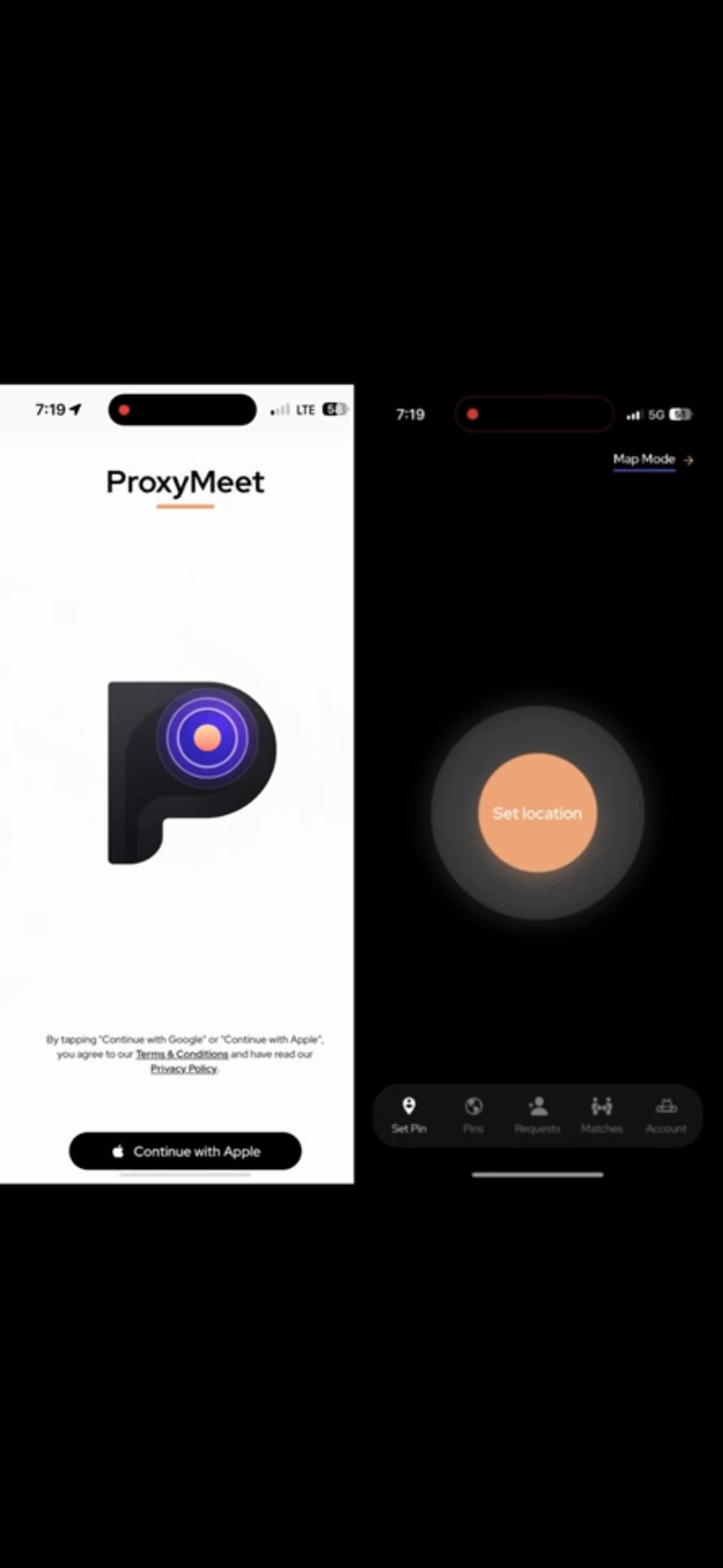
What is ProxyMeet?
Ever see someone and want to ask for their number — but didn't?
Maybe you were too nervous. Maybe the context wasn't ideal — you were at work, boarding a plane, in the middle of something — for whatever reason, you walked away without their contact info. And now you're thinking about it.
ProxyMeet is for salvaging that moment.
Open the app and pin where you were — in the moment or after the fact. If they felt it too and pinned the same spot around the same time, you'll show up in each other's matches. No awkward approach. No hoping you run into them again. Just two people who noticed each other, finally getting the chance to connect.
See how it works ↓From moment to match in five steps
No cold approaches. No awkward intros. Just pin where you were — and if they pin it too, we'll connect you.
Step 01
Pin Your Location
Automatic Pin
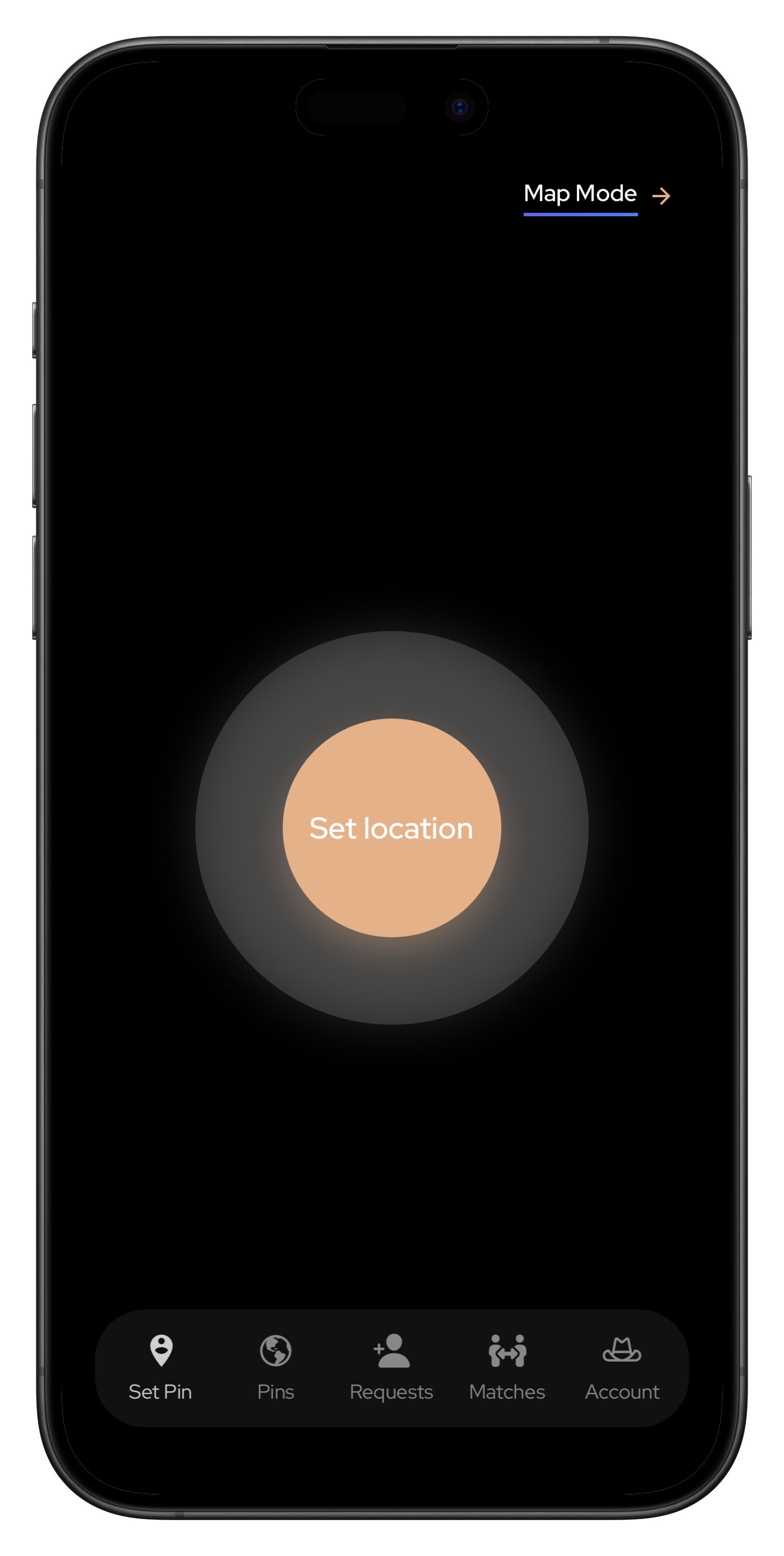
Tap Set location and we automatically capture your exact location, date, and time.
- Your pin is saved to your Pins tab
- For that person to appear, they must also pin the same general location
- Both pins must be within plus or minus 1 hour of each other
For example, if you pinned at 9:00 PM, anyone who pinned between 8:00 PM and 10:00 PM will appear as a potential match
Map Mode Pin
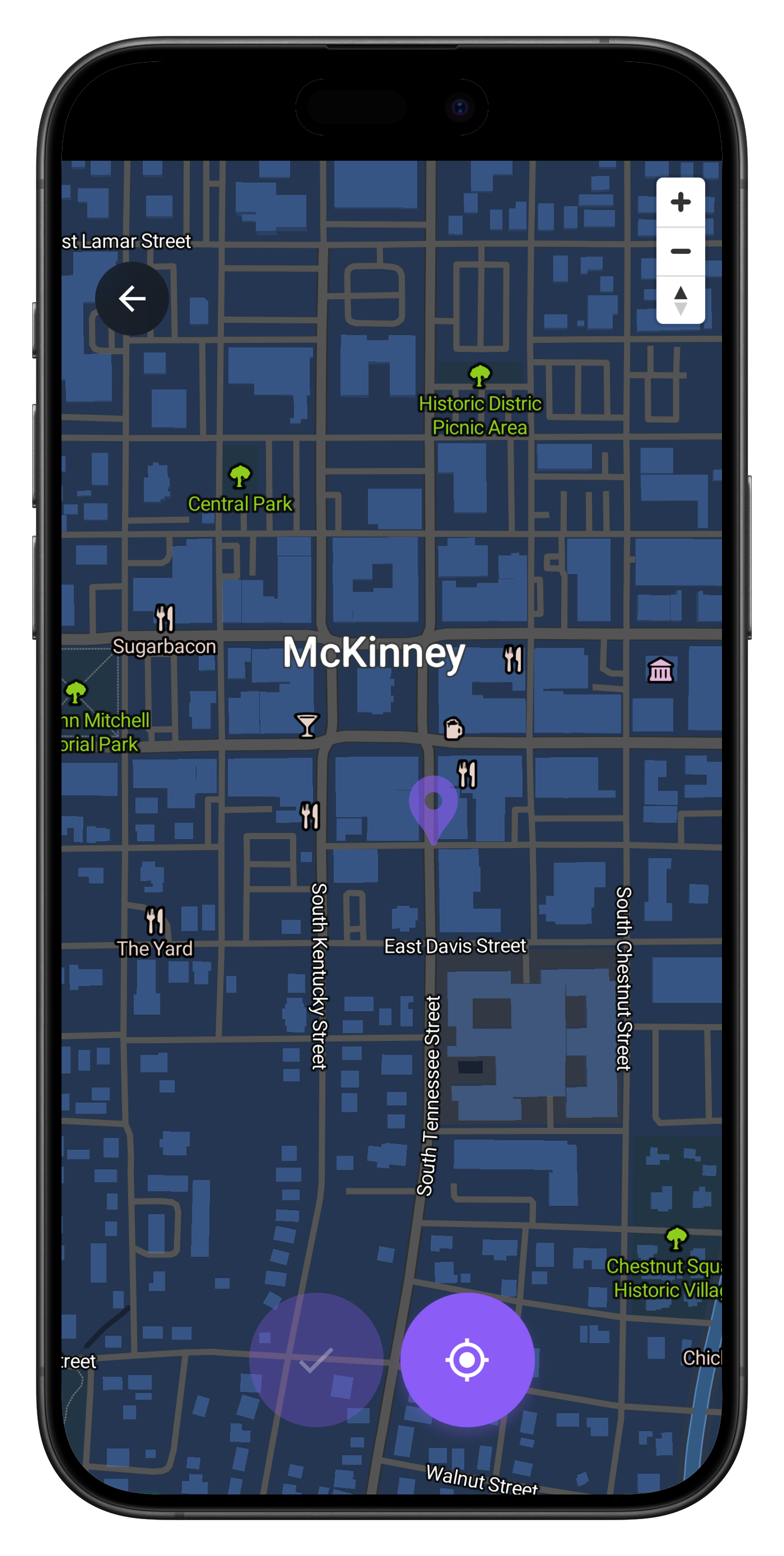
Use Map Mode when you didn't have the app open in the moment — manually select your location on the map, choose the date and time, and we'll match you with anyone who pinned that spot.
- Tap Map Mode in the top right of the Set Location screen
- Drop a pin on the map where you were
- Give your pin a title, then select the date and time of that moment
- Past dates and times only — Map Mode is for moments you couldn't pin in real time
Step 02
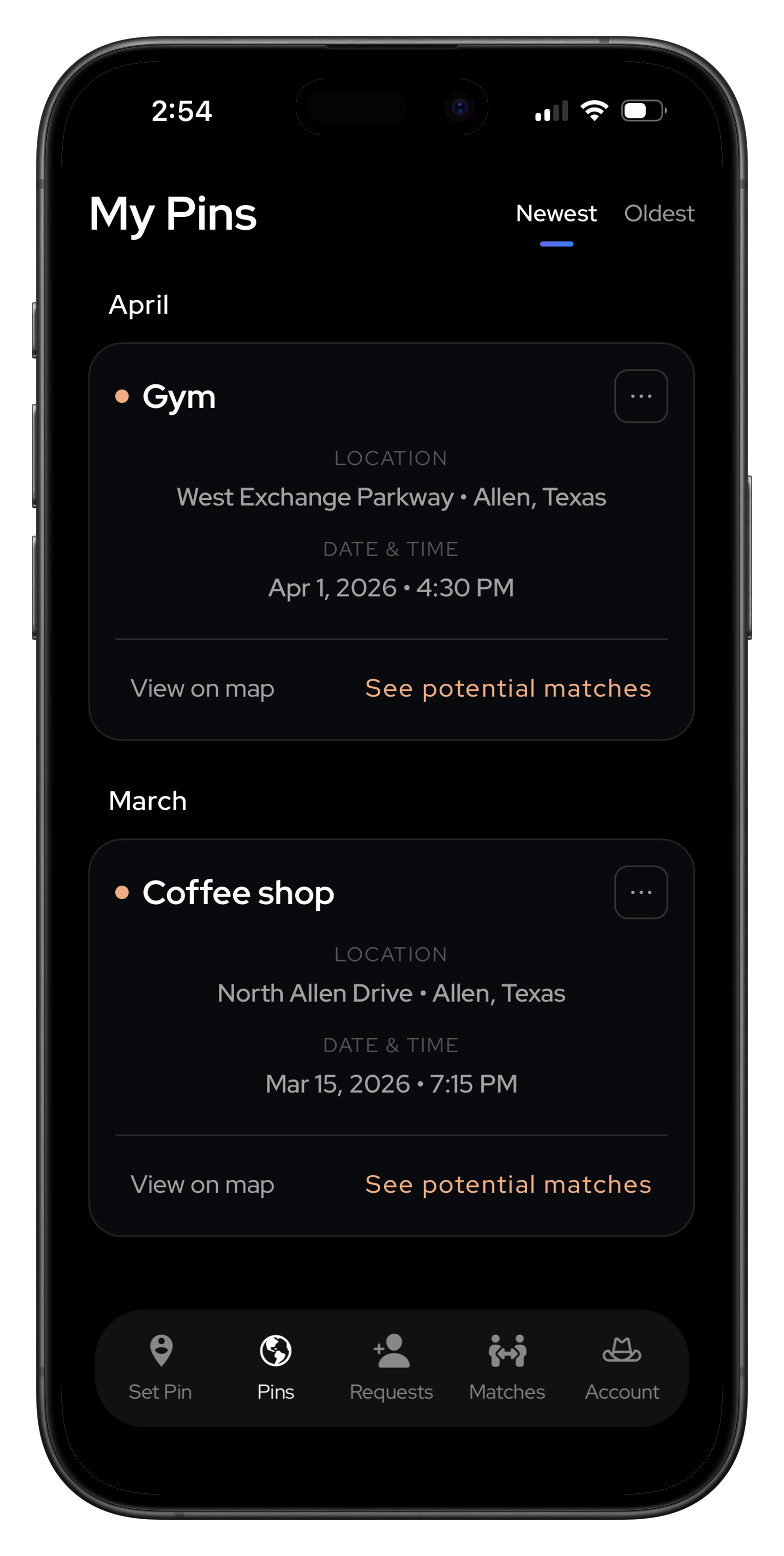
View Your Pins
- Go to your Pins tab
- Find the pin you created
- Tap "See potential matches" to view anyone who pinned the same general location around the same time
Step 03
Find Your Match
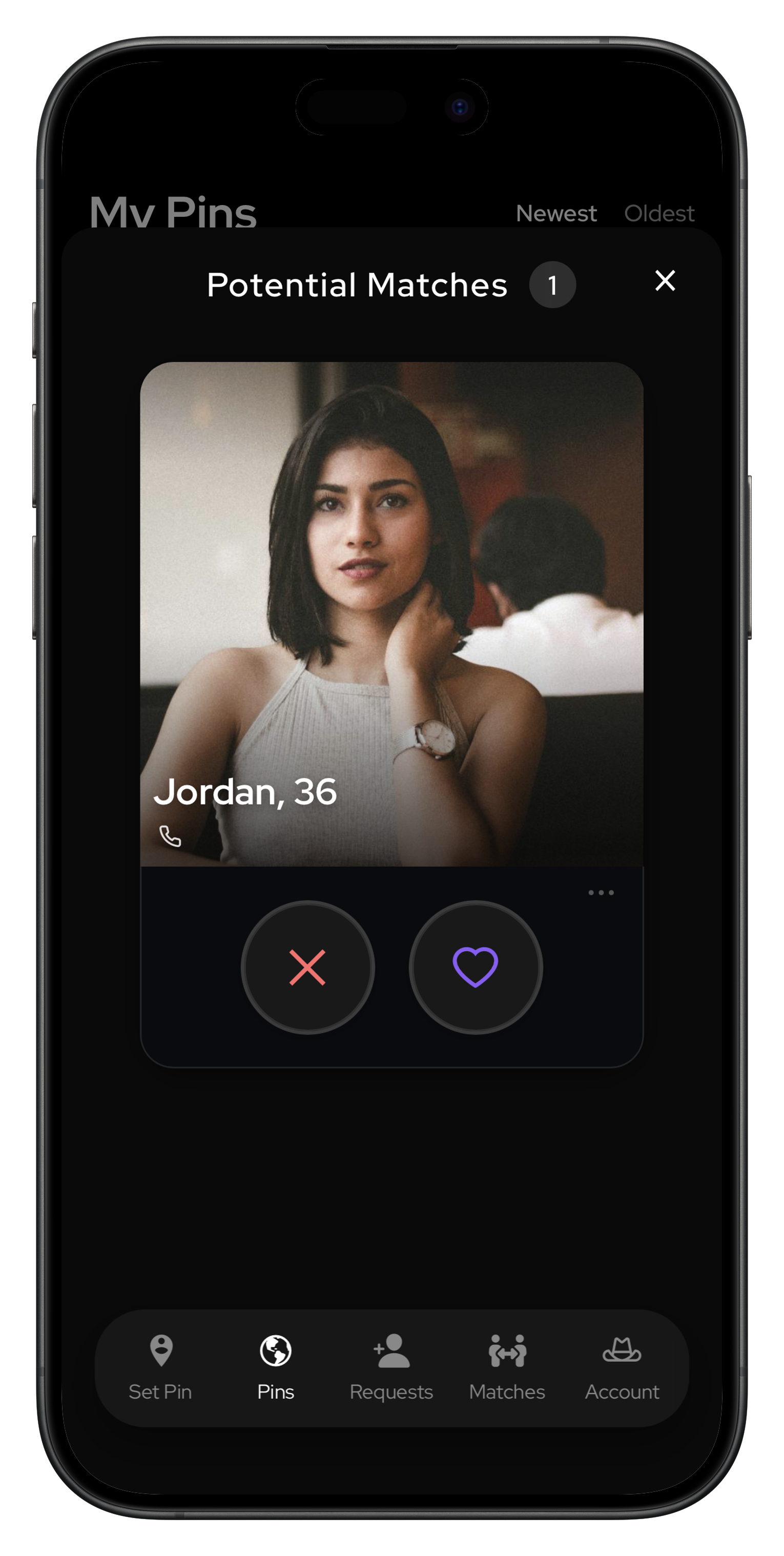
- A list of potential matches appears based on your pin's location and time
- View each person's profile, photos and the contact info they're willing to share
- Tap the heart to send them a match request
- Tap the X to remove them from your list
Step 04
Track Your Requests
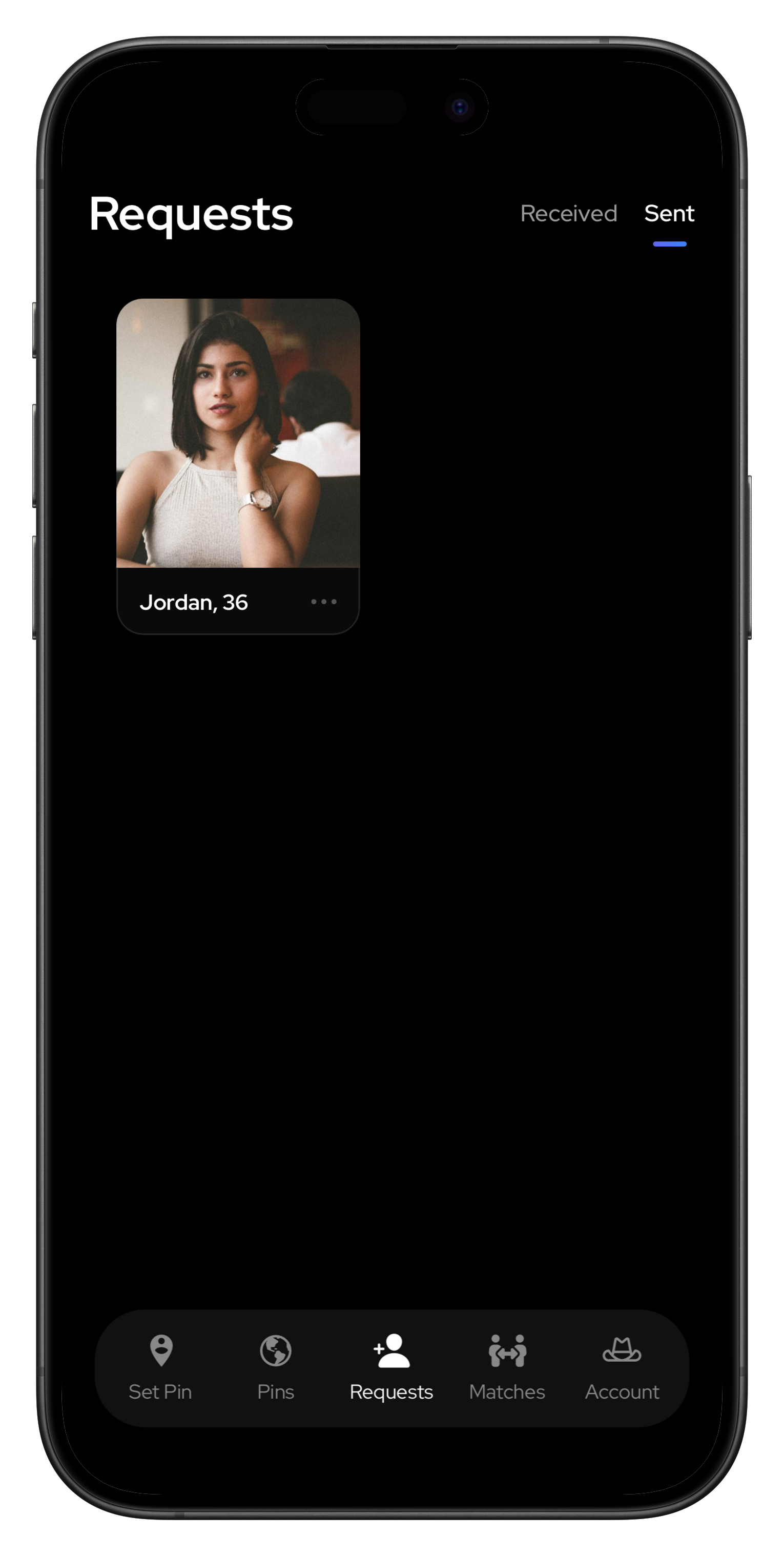
- Head to the Requests tab to track all your match requests
- Tap Sent to see requests you've sent
- Tap Received to see requests others have sent you
- Accept or pass on received requests — the choice is yours
Step 05
Get Their Contact Info
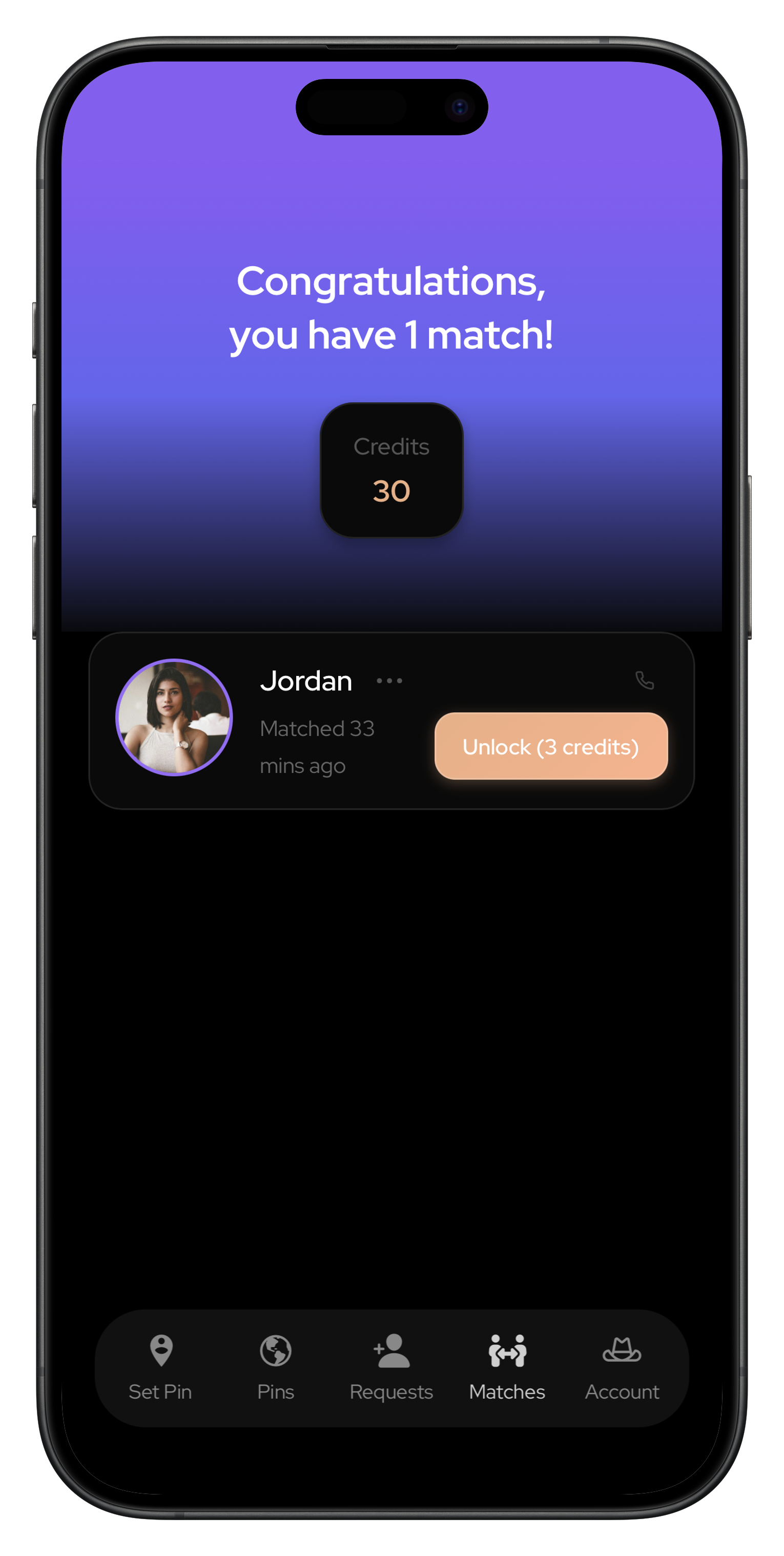
- Head to the Matches tab to see everyone you've matched with
- Both you and your match must spend credits to reveal each other's contact info
- Once both unlock, their shared contact info is revealed — reach out and connect
Installing ProxyMeet is Easy
ProxyMeet is a web app — no app store needed. Watch the video for your device and you'll be set up in under a minute.
iPhone
Safari on iOS
- Open Safari on your iPhone (must be Safari or download will not work)
- Navigate to live.proxymeet.app
- Tap the Share icon at the bottom of your screen (the box with an arrow pointing up)
- Scroll down and tap "Add to Home Screen"
- Tap "Add" in the top right corner to confirm
Android
Chrome on Android
- Open Chrome on your Android device (must be Chrome or download will not work)
- Navigate to live.proxymeet.app
- Tap the three-dot menu in the top right corner of your screen
- Tap "Add to Home Screen"
- Tap "Add" on the prompt to confirm